Setup on an Amazon Fire Device
Use this guide for Fire TV, Firestick, and Fire OS beta testing.
Current Tester Install
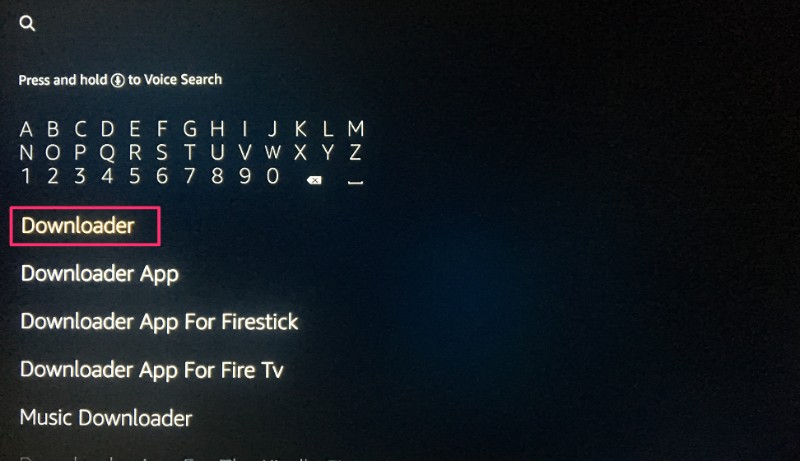
- On the Fire TV device, install and open the Downloader app.
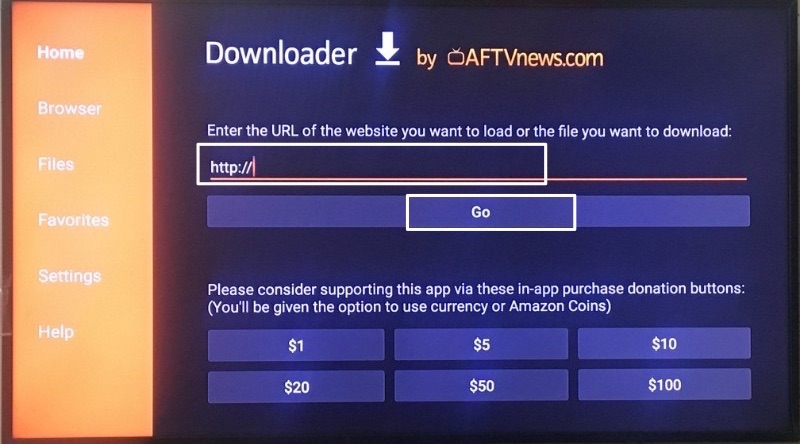
- In Downloader, enter
https://spidervpn.org/tv. - Download the SpiderVPN APK and choose Install.
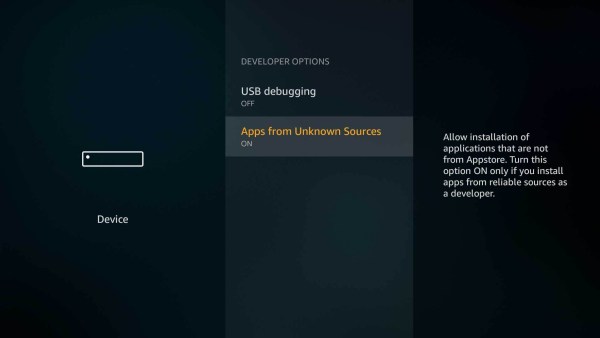
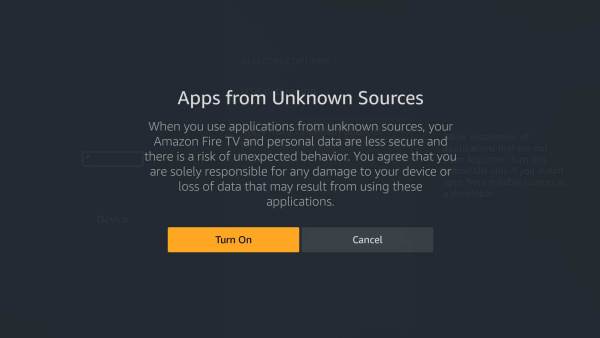
- If Fire OS blocks the install, allow Downloader to install unknown apps, then retry the install from Downloader.
- Open SpiderVPN from the Fire TV Apps screen.
- Sign in inside the SpiderVPN app with the SpiderVPN account email and password provided by support.
Do not use the SpiderVPN website, client area, or a Fire TV browser login page for this test. Some Firestick browsers can show CAPTCHA and stop the customer from logging in. The Fire TV app login uses the app API login flow and is the supported test path.
First Run Checklist
- Confirm the email field can be focused and typed with the Fire TV remote or Fire TV mobile remote.
- After entering the password, press OK on the keyboard, then use D-pad navigation.
- D-pad navigation should move clearly between the password visibility control and the Log in button.
- The Log in button should show a clear focus frame before it is selected.
- Select Log in and wait for the dashboard.
- If Fire OS asks for notification permission, allow it.
- Select a server or keep the default server.
- Select Connect.
- Approve the Fire OS VPN permission prompt on the first connection.
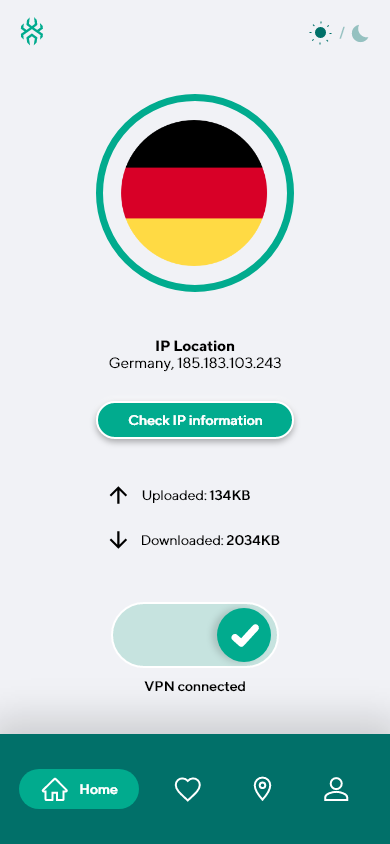
- Confirm the app shows a connected state.
- Select Disconnect, confirm the disconnect prompt, and confirm the app returns to disconnected state.
Fire TV Remote Controls
- D-pad moves focus between fields, actions, sidebar items, server rows, and dialogs.
- Select activates the focused control.
- Back closes dialogs or returns to the previous screen.
- Home leaves the app; reopening SpiderVPN should resume without a blank screen.
Tester Feedback
Please report:
- Fire TV or Firestick model.
- Fire OS version if available.
- Whether install, sign-in, connect, disconnect, Home/reopen, and Back behavior worked.
- Any screen where D-pad focus is missing, unclear, or trapped.
- Any blank screen, stuck loading state, clipped text, VPN permission issue, or CAPTCHA.
- Screenshot or short video when possible.
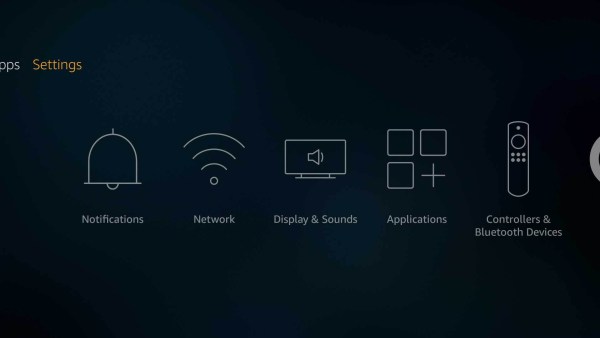
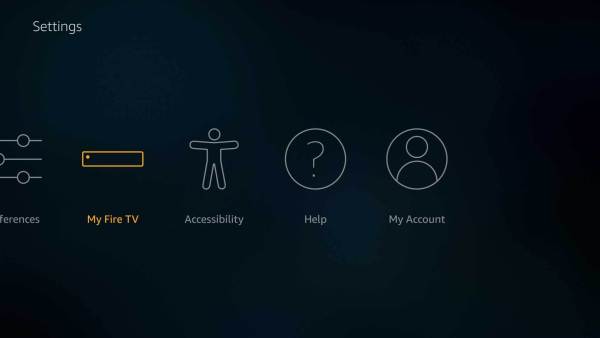
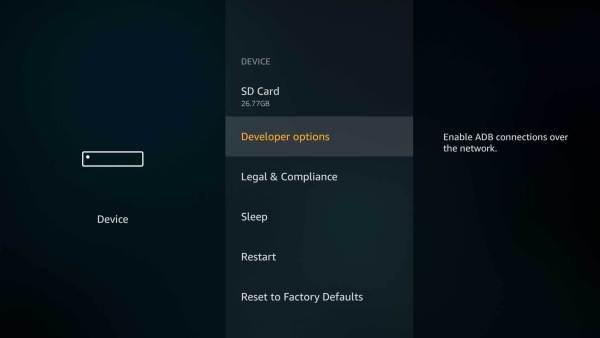
Reference Screenshots
These images were preserved from the previous public GitBook page for visual parity.