Setup Instructions for Android
Use this page for Android phone, Android tablet, Android TV, and Android beta testers.
Beta Tester Install
- Join the SpiderVPN beta testing track using the invitation link provided by support.
- Install SpiderVPN from Google Play if the beta is available to your account.
- If support provides a direct test APK, download it only from the SpiderVPN-provided URL.
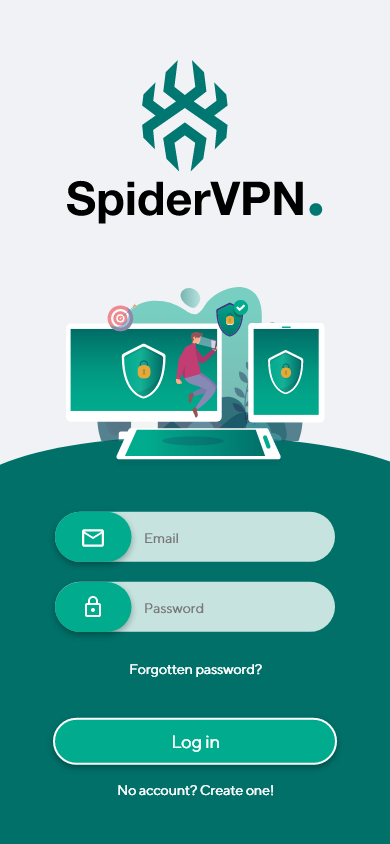
- Open SpiderVPN and sign in inside the app.
- Approve the Android VPN permission prompt on first connection.
- If Android asks for notification permission, allow it so connection state can be shown.
Core Test Flow
- Open SpiderVPN.
- Sign in with the SpiderVPN account provided for testing.
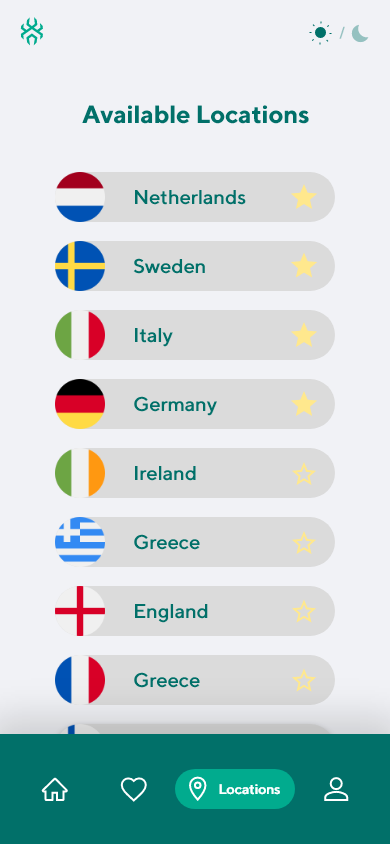
- Browse or search the server list.
- Select a server.
- Connect to the VPN.
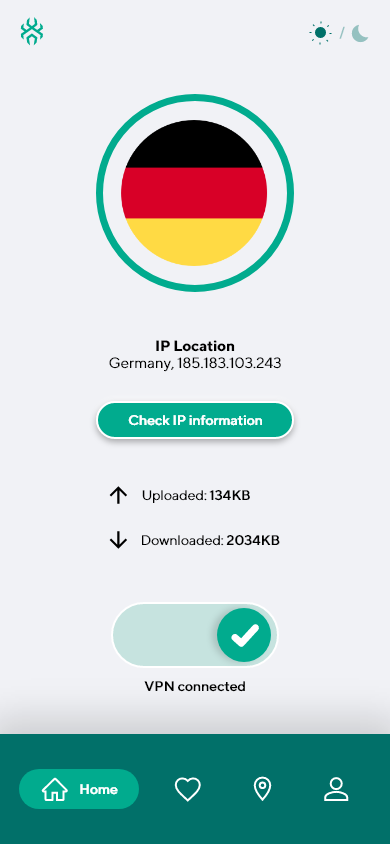
- Confirm the dashboard shows connected.
- Disconnect.
- Close and reopen the app.
- Confirm the app resumes cleanly without losing account state.
Android TV / Fire TV Difference
Android TV testers should use Google Play or the approved Android TV APK path provided by
support. Fire TV and Firestick testers should use the Fire TV guide and Downloader URL
https://spidervpn.org/tv.
Tester Feedback
Please report:
- Device model.
- Android version.
- Install path: Google Play beta, Android TV beta, or direct APK.
- Sign-in, server selection, connect, disconnect, and reopen result.
- Any focus, layout, permission, VPN prompt, or resume issue.
- Screenshot or short video when possible.
Reference Screenshots
These images were preserved from the previous public GitBook page for visual parity.