Setup Instructions for iOS Devices
Use this page for iPhone and iPad beta testers.
Beta Tester Install
- Accept the SpiderVPN TestFlight invitation from support.
- Install TestFlight from the App Store if it is not already installed.
- Open the SpiderVPN invitation in TestFlight.
- Install the latest SpiderVPN beta build.
- Open SpiderVPN from the iPhone or iPad home screen.
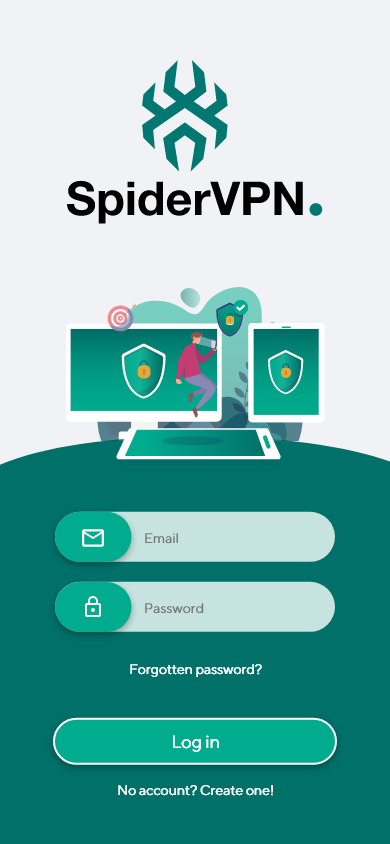
- Sign in inside the app with your SpiderVPN email and password.
- Approve any iOS VPN profile or VPN permission prompts.
Use the in-app login screen. Do not use website login pages to test app authentication.
Core Test Flow
- Open SpiderVPN.
- Sign in.
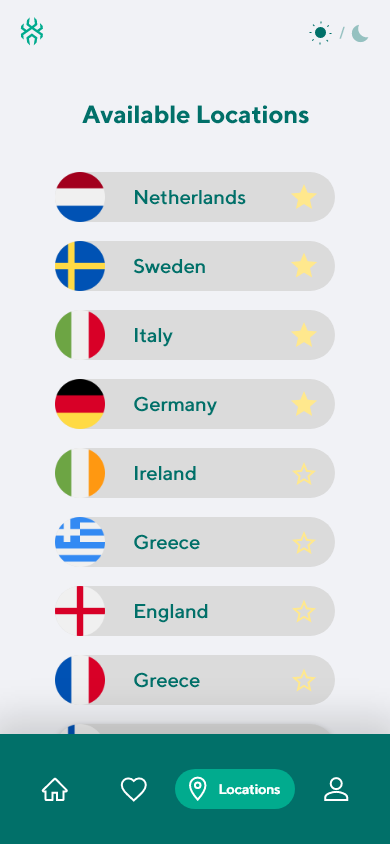
- Open the server list.
- Select a server.
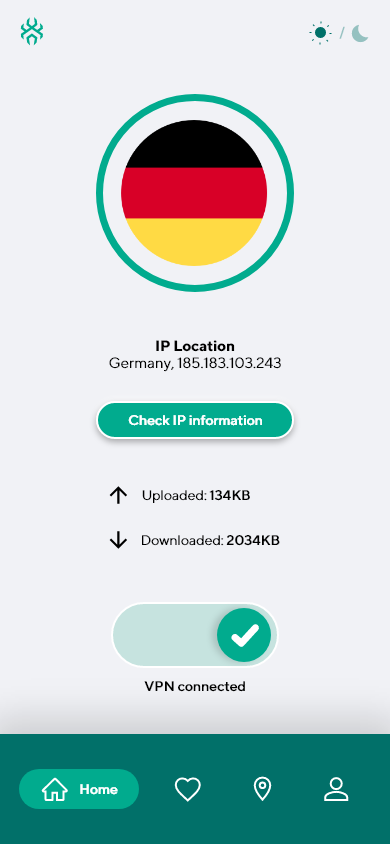
- Connect to the VPN.
- Confirm iOS shows the VPN indicator.
- Disconnect.
- Close and reopen the app.
- Confirm the app resumes without a blank screen or repeated setup prompt.
Tester Feedback
Please report:
- Device model and iOS/iPadOS version.
- TestFlight build number if visible.
- Whether install, sign-in, server selection, connect, disconnect, and app reopen work.
- Any VPN permission issue, blank screen, stuck loading state, clipped text, or incorrect account time.
- Screenshot or short video when possible.
Common Notes
- Internet access is required.
- A SpiderVPN account with active test entitlement is required for full VPN access.
- VPN permission prompts are expected on first connection.
Reference Screenshots
These images were preserved from the previous public GitBook page for visual parity.